How GrowFrame works.
A guided walkthrough for your first session, followed by a reference for every setting, shortcut, and feature. If something on screen doesn't match what's written here, the app is the source of truth — email hello@growframe.app and I'll fix the doc.
Getting started
First launch
Install the app (macOS 15+ on Apple Silicon — M1 or newer — or Windows 10/11), launch it, and enter the license key from your purchase email. Everything lives locally on your machine — GrowFrame never phones home, and there's no account to create.
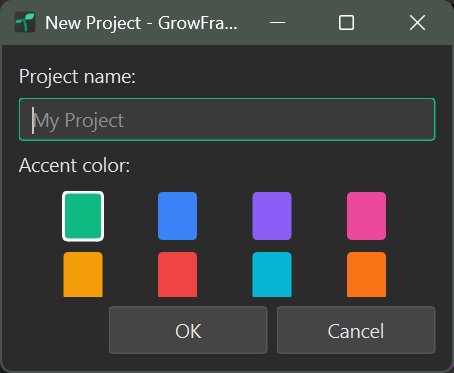
A new project
Projects are how GrowFrame keeps separate bodies of work apart — one project per short film, one per gallery show, one per illustration series. You can have as many as you want.
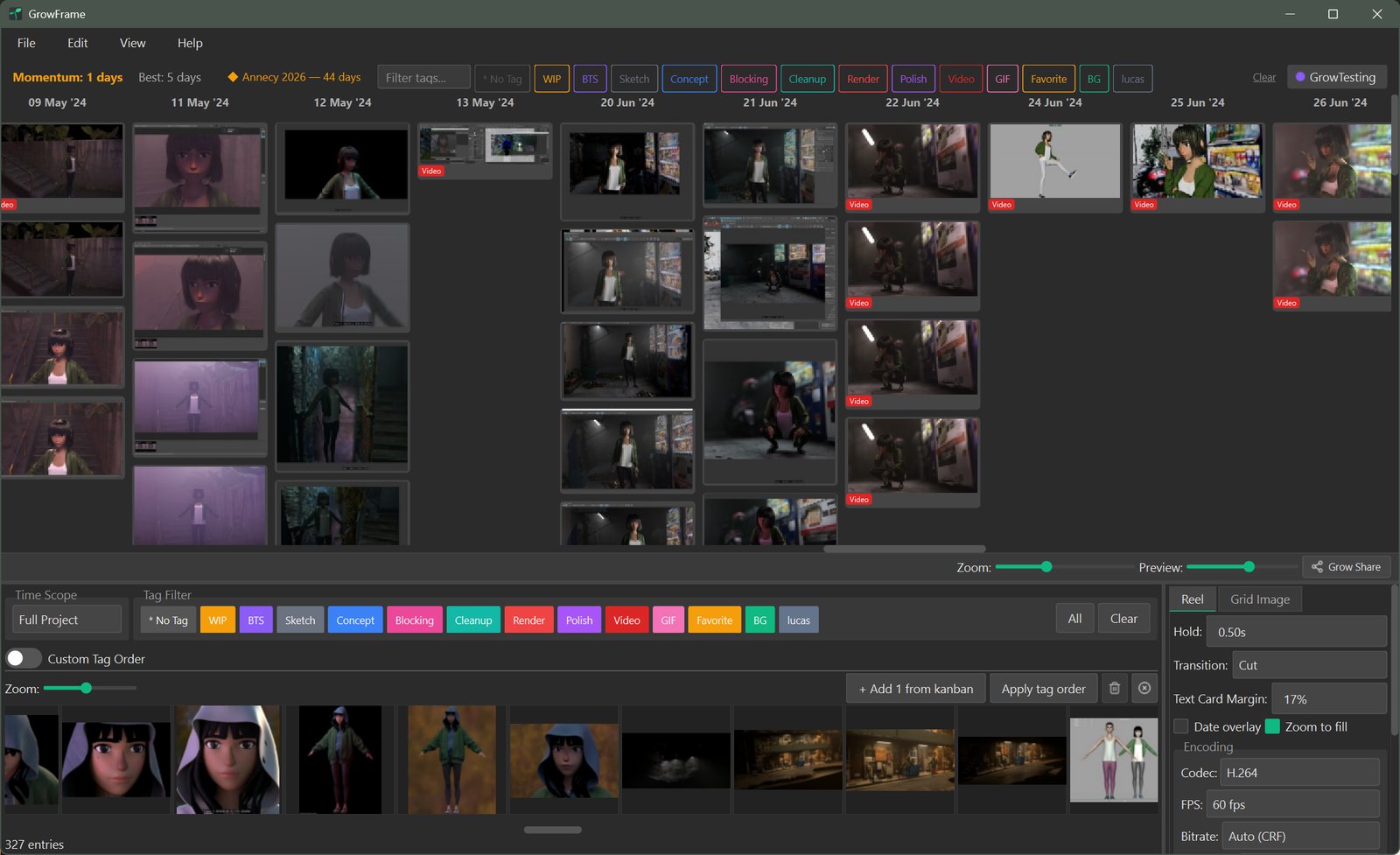
The main window
Your first entry
Four ways to get something into today's column:
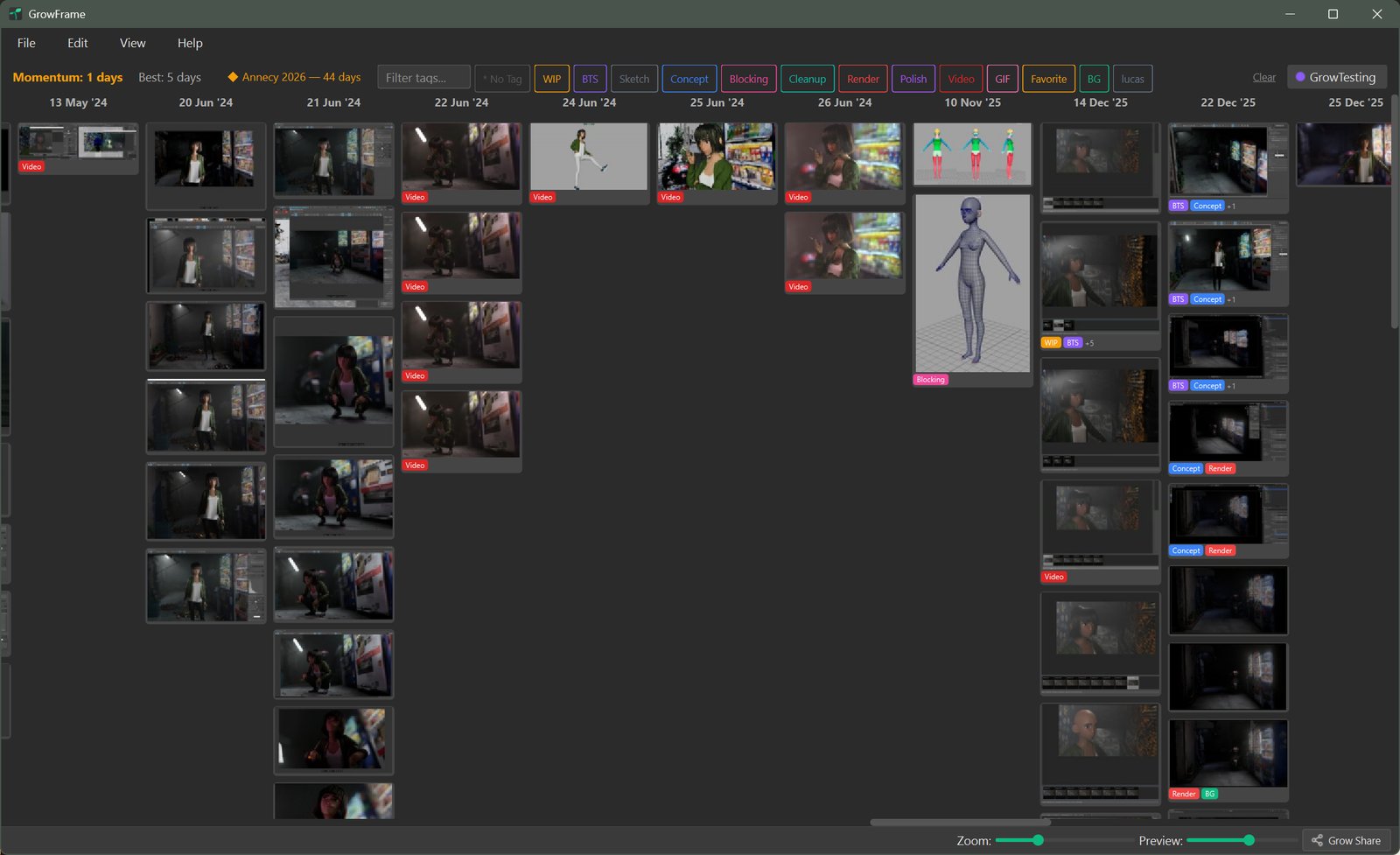
- Drag-drop any image, video, or GIF onto the canvas. It always lands on today's column. Once an entry is in, its date is fixed — to back-date, use Import Folder instead (see below).
- Screen capture — fullscreen from the tray icon, or drag a rectangle for a region grab (image, video, or GIF). Multi-monitor picker if you have more than one screen. See Screen capture.
- Import a folder via File → Import Folder. GrowFrame scans one level of subfolders, auto-dates each file (EXIF metadata first for camera photos; then a
YYYY-MM-DD/YYYY_MM_DD/YYYYMMDDpattern in the filename; then the file's modified date as a fallback), and auto-tags by subfolder name (WIP/→ WIP). This is the only way to put an entry on a day other than today, so rename your renders with a date prefix before importing if you want them to land in the past. - Watch folder — see the reference. Point it at an iCloud or Dropbox folder and anything you drop in from your phone lands in today's column within 30 seconds.
Supported file types — images: PNG, JPG, JPEG, BMP, TIFF, WebP. Videos: MP4, MOV, AVI, MKV, WebM. Plus GIF.
Tag it, note it
Press E to tag the selected card. GrowFrame ships with 14 built-in tags — WIP, BTS, Sketch, Concept, Blocking, Cleanup, Color, Render, Polish, Final, Reference, Video, GIF, Favorite — and you can add your own with custom colors. GIF entries get the GIF tag applied automatically.
By default the tag dialog opens automatically right after you add a single entry — a screen capture, a single-file drag-drop, or File → Add Entry — so you can tag while the work is fresh. Video and GIF captures arrive with their built-in tag already checked. Prefer to tag later? Turn it off in Settings → General → Entry creation. Bulk imports and watch-folder auto-imports never interrupt.
Your first reel
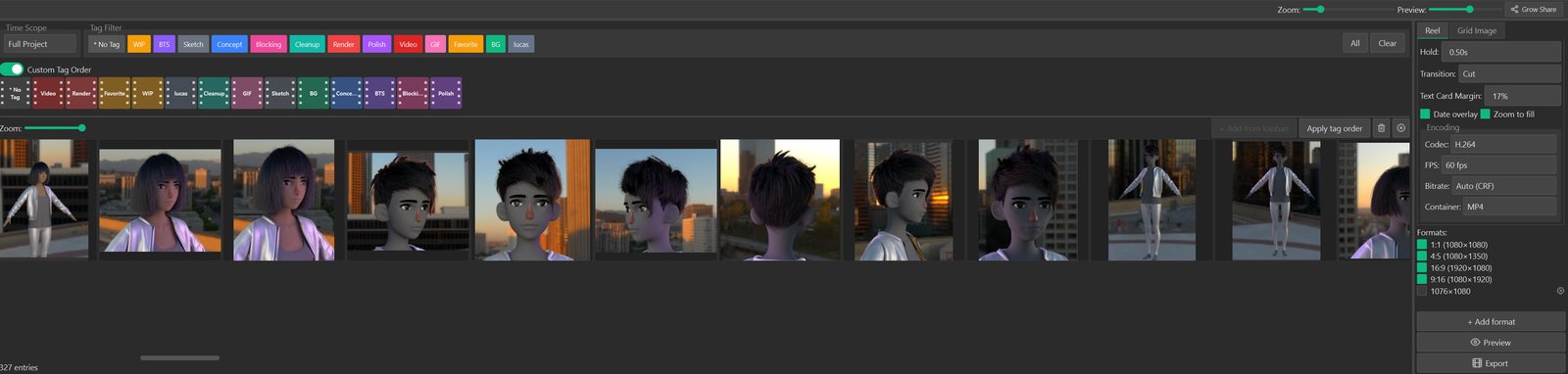
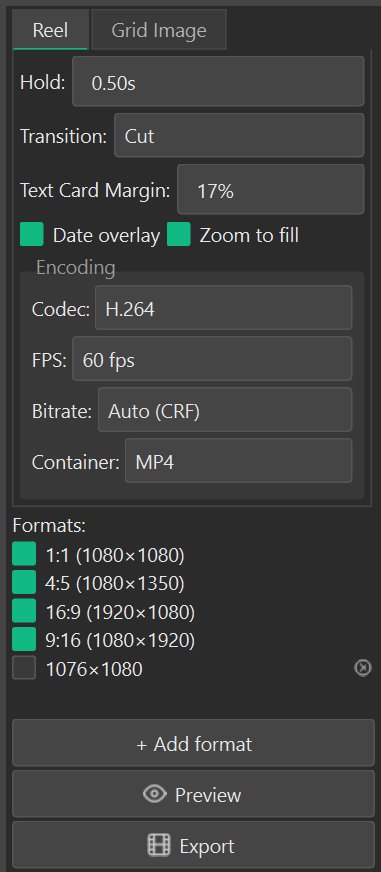
Click Preview to render the first few seconds inline. Click Export when you're happy. GrowFrame can encode several aspect ratios in a single pass — tick 9:16 for Instagram, 1:1 for a grid post, and 16:9 for YouTube and all three land in the folder you picked.
Reference
Views
- Kanban
- Day-column calendar. Primary surface. Drag-drop in, click to select, double-click to open an entry full-screen in the media viewer.
- Grow Share
- The export workspace. Opens with Ctrl+E or the button in the bottom bar. Covered in detail under Grow Share.
- Media Viewer
- Fullscreen image/video/GIF viewer. Arrow keys step between entries; for video, arrow keys step frames while paused and playback controls sit at the bottom.
- Mosaic Viewer
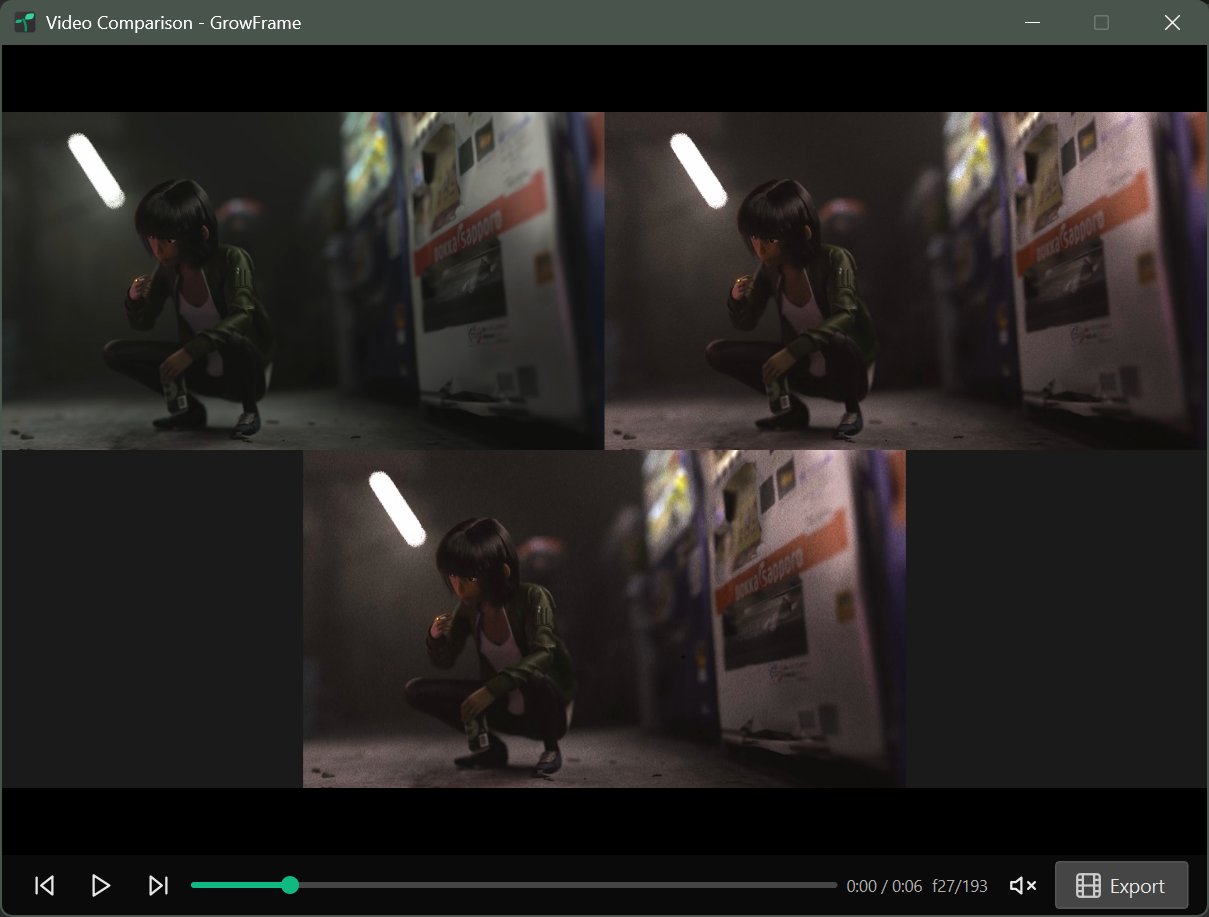
- Side-by-side synced playback for comparing video versions. Useful when you have three takes of the same shot and want to see them cut together frame-locked.
Menu bar
Four menus along the top of the window — File, Edit, View, Help. Most actions show their current keyboard shortcut next to the label; rebind any of them in Settings → Shortcuts.
File
- Add Entry…
- Open a file picker and import one or more media files into today's column.
- Import Folder…
- Scan a folder (root + one level of subfolders), import files, auto-date each one (EXIF → filename pattern like
2026-04-24→ file modified date), auto-tag by subfolder name. The only route to back-date entries. - Import Project…
- Load a project from a
.growframearchive — useful when moving between machines or restoring a manual backup. - Export Project…
- Bundle the current project — entries, media, tags, notes — into a
.growframearchive. - Grow Share
- Open the export workspace. Same as the bottom-bar button or Ctrl+E.
- Quit / Exit
- Close GrowFrame. Ctrl+Q.
Edit
- Undo / Redo
- Step backwards or forwards through your last 50 changes — entries added, deleted, moved, tagged, captioned.
- Add Note
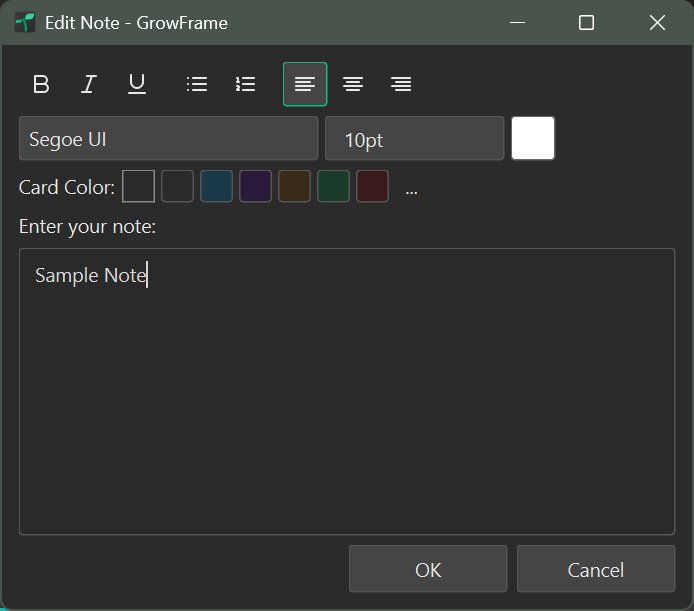
- Attach a text caption to the selected entry. Same as N.
- Milestones…
- Open the milestone editor — add or edit deadlines and countdowns for the current project.
- Refresh All Thumbnails
- Delete and regenerate every thumbnail in the project. Useful if thumbnails fall out of sync or get corrupted.
- Preferences
- Open Settings. Same as Ctrl+,.
View
- Go to Today
- Scroll the Kanban to today's column. Same as T.
- Hide Empty Days
- Checkable — collapse day columns that have no entries. Also reachable from Settings → General.
- Show Momentum
- Checkable — show or hide the streak counter at the top of the window.
- Show Milestones
- Checkable — show or hide milestone chips in the Kanban.
- Show All Card Tags
- Checkable — each card shows every tag it has (on) or just the leading one or two (off).
- Toggle Filter Bar
- Show or hide the tag filter row above the canvas. Same as F.
Help
- Documentation
- Open this page (growframe.app/docs) in your browser.
- Send Feedback
- Open the feedback form in your default browser — bug reports, feature requests, and general notes all welcome.
- About
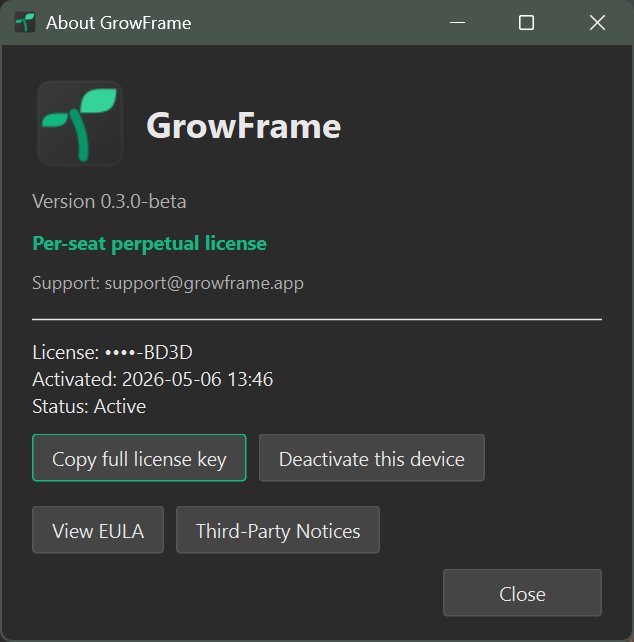
- Version and licence summary, with buttons to open the bundled EULA and third-party notices, copy your full licence key, and deactivate this device. See Licensing & activation.
Screen capture
Capture straight into today's column without leaving your work. From the system-tray icon — or a global hotkey you bind — grab the full screen, or drag a rectangle for a region capture saved as an image, video, or GIF. On a multi-monitor setup a numbered picker appears so you choose which display to grab. Output format, FPS, codec, max duration, and bitrate live in Settings → Capture.
On macOS, region video uses Apple's ScreenCaptureKit (the app's macOS 15+ floor covers it automatically). The first time you record you'll see a single system "Screen Recording" permission prompt — click Allow once and you're done: no manual System Settings toggle, no weekly re-prompt. The cursor is included, and you can hover, click, drag, and use trackpad gestures inside the capture rectangle exactly as if it weren't there. The red selection border and the recording-time / Stop indicator stay out of the recorded frames.
Entries
Each entry has:
- Date — the day the card lives on. Set at import (always today for drag-drop; auto-detected for Import Folder) and fixed afterwards. To put an entry on a different day, re-import it through File → Import Folder with the date in the filename or EXIF.
- Media — an image, video, GIF, or a note-only card with a chosen background color.
- Tags — any number of built-in or custom tags.
- Note — free-text caption. Shown in the status bar on hover; available as a caption in grid exports.
- Sort order — position within the day. Drag to reorder.
Right-click any media card for: Show in Folder (reveals the file in Explorer / Finder), Copy to Clipboard (paste the real file elsewhere with Ctrl+V / Cmd+V), and Copy Path. Multi-select with Ctrl/Shift-click and the copy actions apply to the whole selection.
Delete an entry with Delete — GrowFrame asks first. Multi-select and one Delete
removes them all; a single Ctrl+Z restores every entry with its tags (50-step history).
Deleted media isn't destroyed — it moves to an entries/deleted/ folder inside the project,
recoverable by hand and never auto-purged.
Tags
Tags do two jobs in GrowFrame: they organise the calendar — filter by one or more to focus on specific kinds of work — and they steer the export engine. Every reel, grid, mosaic, and montage uses the tag filter to decide which entries belong in the story. So tagging isn't an admin task, it's the input that shapes tomorrow's output.
The 14 built-in tags — WIP, BTS, Sketch, Concept, Blocking, Cleanup, Color, Render, Polish, Final, Reference, Video, GIF, Favorite — each have a fixed color designed to read cleanly at card size. Create your own in the tag editor with a custom color.

Grow Share
Four export types share the same left-pane scope and tag filter:
- Reel
- A timelapse video. Set hold-per-frame (default 0.5s), FPS (10–60), crop mode (fill or letterbox), and whether to burn the date into each frame. Tick multiple aspect ratios (1:1, 4:5, 16:9, 9:16, or custom WxH) to export all formats in one pass. Codec is H.264 by default — switch to H.265 in Settings → Capture.
- Grid Image
- An NxN grid of entries as a single PNG or JPG. Options: crop to square, include the note as a caption, apply a soft 3D perspective.
- Mosaic
- Combine 2–4 video entries into a grid, horizontal, or vertical layout. The synced playback you see in the Mosaic viewer becomes its own exportable video, dropped back onto today's column as a new entry.
- Montage editor
- A drag-drop timeline for hand-edited cuts when the auto-rendered reel isn't quite the story you want — per-clip hold duration, transition overrides, and text cards (Title, Divider, Credits).
Transitions can be Cut, Crossfade, or Slide (left / right / up / down) — set as the reel default or overridden per clip from the timeline. Choose the None time scope to build a montage purely by hand instead of from a date range.
Momentum
GrowFrame tracks two numbers: your current streak (consecutive days with at least one entry, with a one-day grace period) and your longest streak. Miss a day and the current streak resets — the longest is kept forever. The counter sits in the momentum bar at the top of the window. Toggle "Show best streak" in Settings → General if you'd rather see the record than the current run.
Daily reminders are opt-in (Settings → General → Daily reminder). No shame-based nagging, no red numbers.
Projects & data
Each project is a folder on your disk. Under the hood: ~/.growframe/projects/<project-id>/ by default,
with entries/ (originals), thumbnails/, and a local SQLite database. Change the data
directory in Settings → General if you'd rather point at Dropbox, iCloud Drive, or an external SSD.
GrowFrame keeps weekly automatic backups (configurable count). Use Settings → General → Back up now for a manual snapshot before a risky experiment; use Restore from backup to roll back. Any time GrowFrame upgrades the database it saves a pre-migration backup first.
On startup GrowFrame runs a quick database integrity check and offers to restore from a backup if it finds damage. If a project was left open on another machine and not closed cleanly, you're warned before reopening so two copies can't fight over the same data.
Watch folder
Set a watch folder in Settings → General → Watch folder. GrowFrame polls it every 30 seconds and imports
anything new as an entry on today's column. Subfolders become tags — drop a render into
watch/Color/ and it lands tagged Color.
After a successful import the file is moved to published/; anything that failed lands in
failed/ so nothing silently disappears. Files younger than 5 seconds are skipped (they might still be
syncing from the cloud).
The point of this system is a watchfolder isn't a sync — it's a doormat. Point it at your phone's iCloud Photos folder or a Dropbox folder you share with yourself, and shots from the studio or the street show up in the timeline without you opening the laptop.
Settings
Open preferences with Ctrl+,. Four tabs.
General
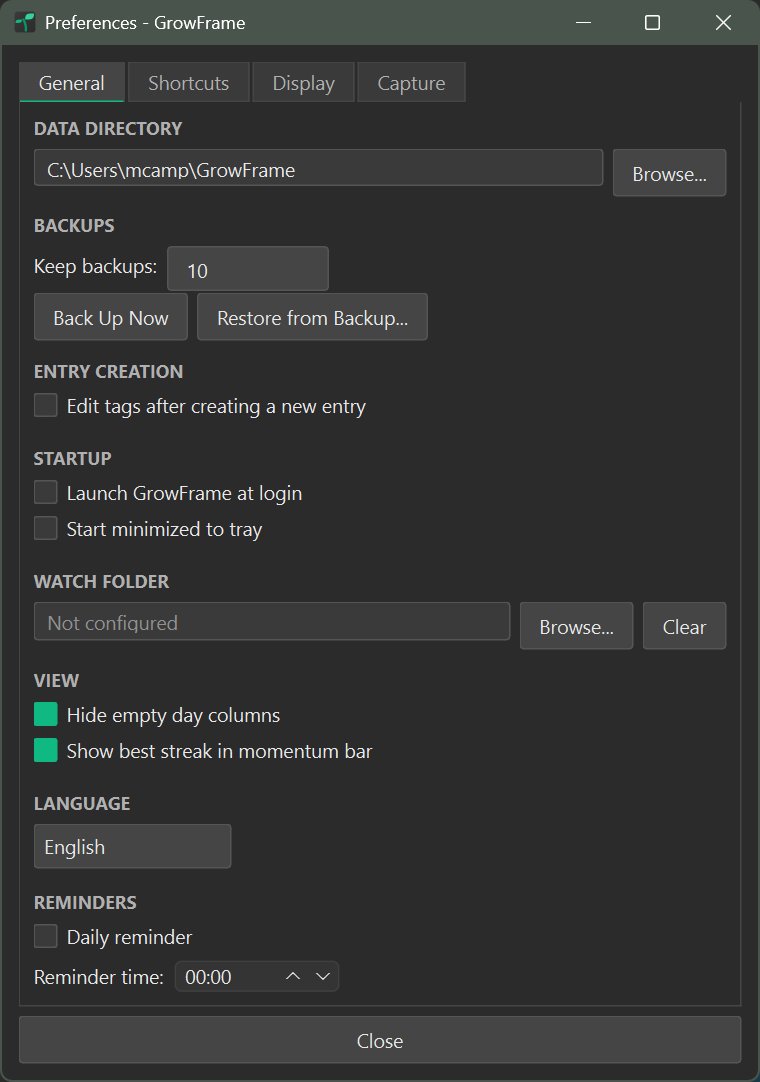
Listed here in the same order they appear in the tab:
- Data directory — where projects live on disk; Browse… to relocate (Dropbox, iCloud Drive, an external SSD). Requires restart after change.
- Backups — Keep backups sets how many automatic weekly snapshots to retain (default 10). Back Up Now and Restore from Backup… sit just below.
- Entry creation — Edit tags after creating a new entry: opens the tag dialog automatically after a single capture, drag-drop, or File → Add Entry. On by default.
- Startup · Launch GrowFrame at login — registers GrowFrame with Windows / macOS so the tray icon, global capture hotkeys, and daily reminder arm at every login. Off by default; installed builds only.
- Startup · Start minimized to tray — launch straight to the tray icon with no window. Off by default (the window opens on launch).
- Watch folder — Browse… to pick a folder to auto-import from; Clear to disable. Scoped to the current project.
- View · Hide empty day columns — collapse days with no entries. Off by default (the gaps are part of the story).
- View · Show best streak in momentum bar — swap the current-streak counter for the all-time best.
- Language — English and Spanish, auto-detected from your system locale and switchable here. More locales when fluent collaborators join.
- Reminders — Daily reminder is an optional nudge with a Reminder time picker. Off by default.
Capture
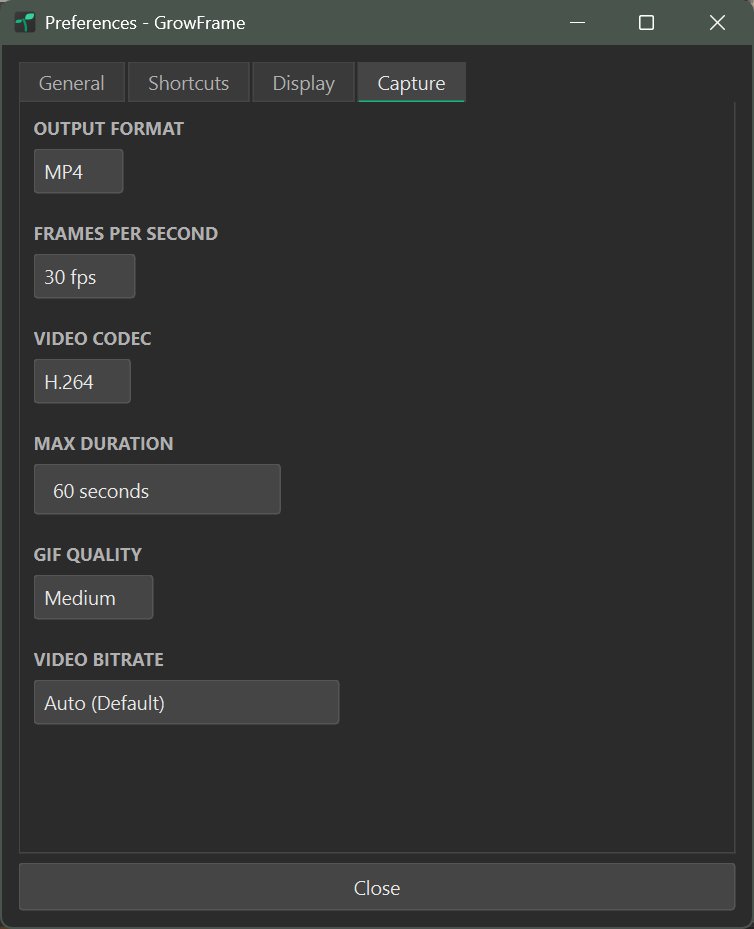
- Output format — MP4, MKV, or GIF.
- FPS — 10, 15, 24, 30, or 60. Default 30.
- Video codec — H.264 or H.265. Default H.264 for widest compatibility.
- Max duration — auto-stop, 5–300 seconds. Default 60.
- GIF quality — Low / Medium / High.
- Video bitrate — Auto, or a preset for Instagram/LinkedIn, TikTok, YouTube, or a custom kbps value.
Display
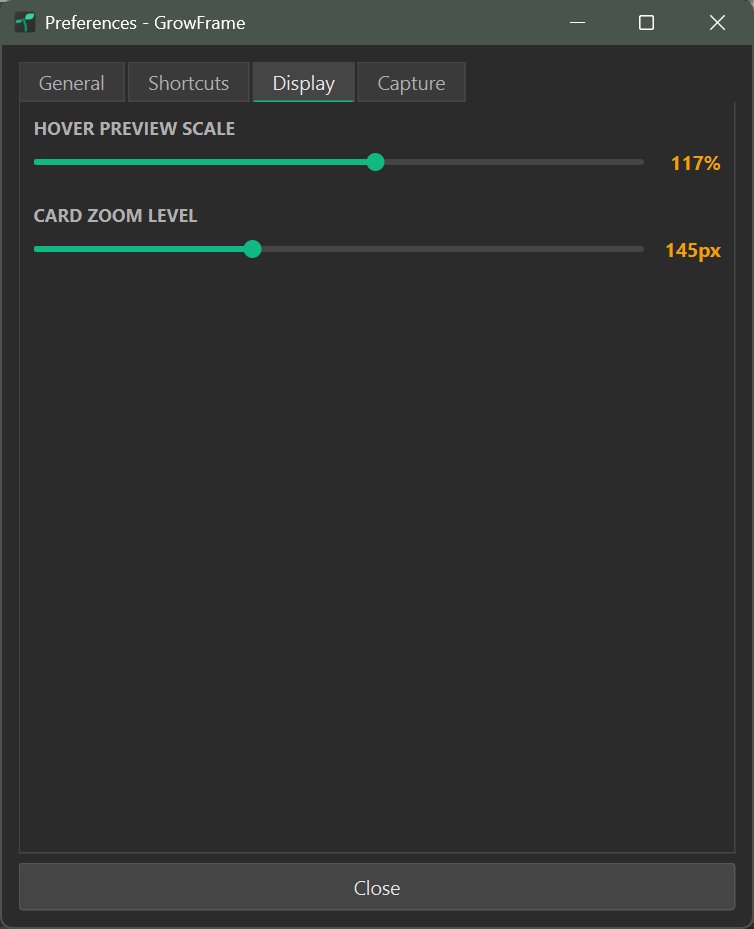
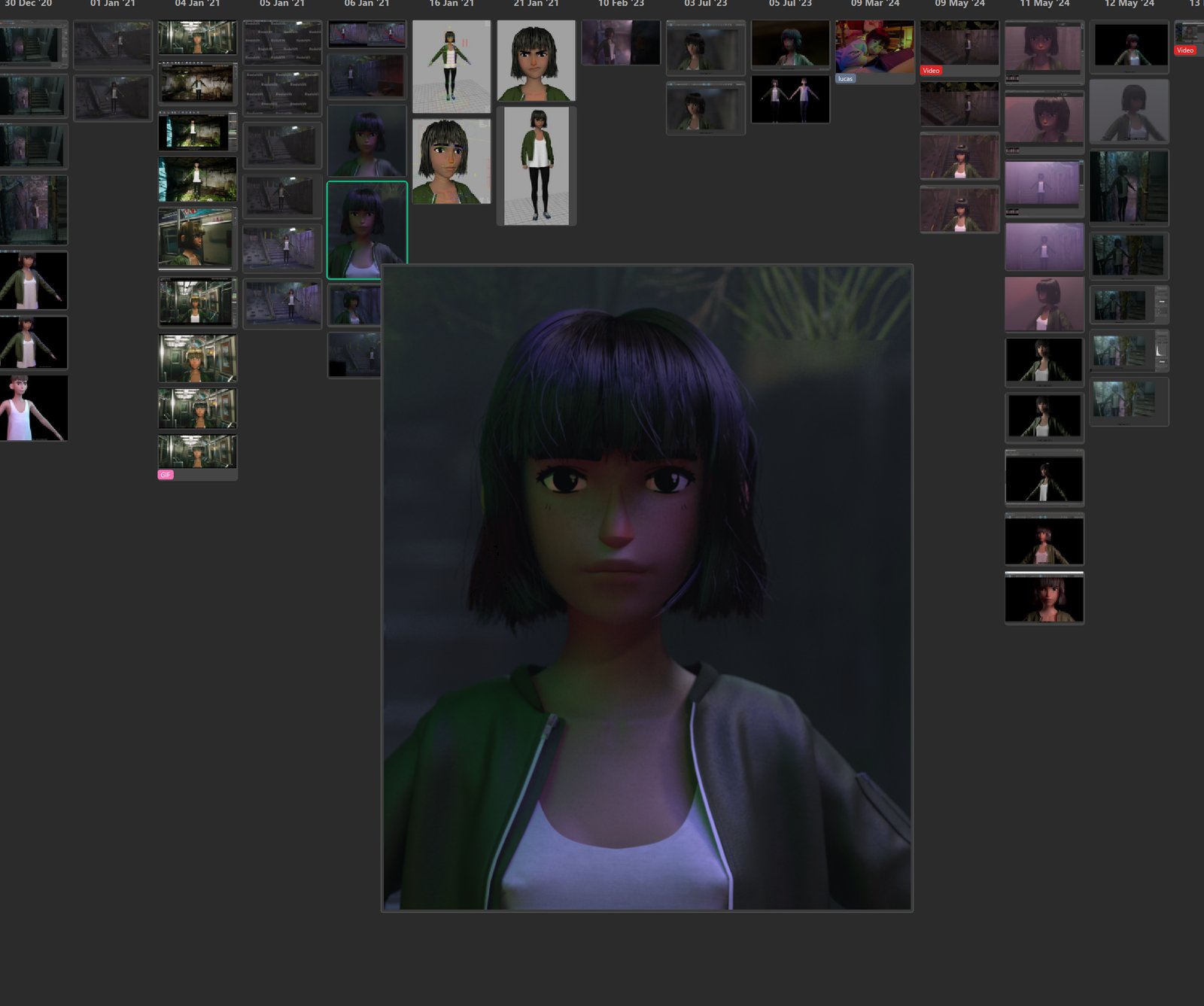
- Hover preview size — how big the hover preview gets: 200–1400 px on the longest edge (default 600 px).
- Card zoom level — default size of Kanban cards (60–300px). The zoom slider in the bottom bar overrides this temporarily.
Shortcuts
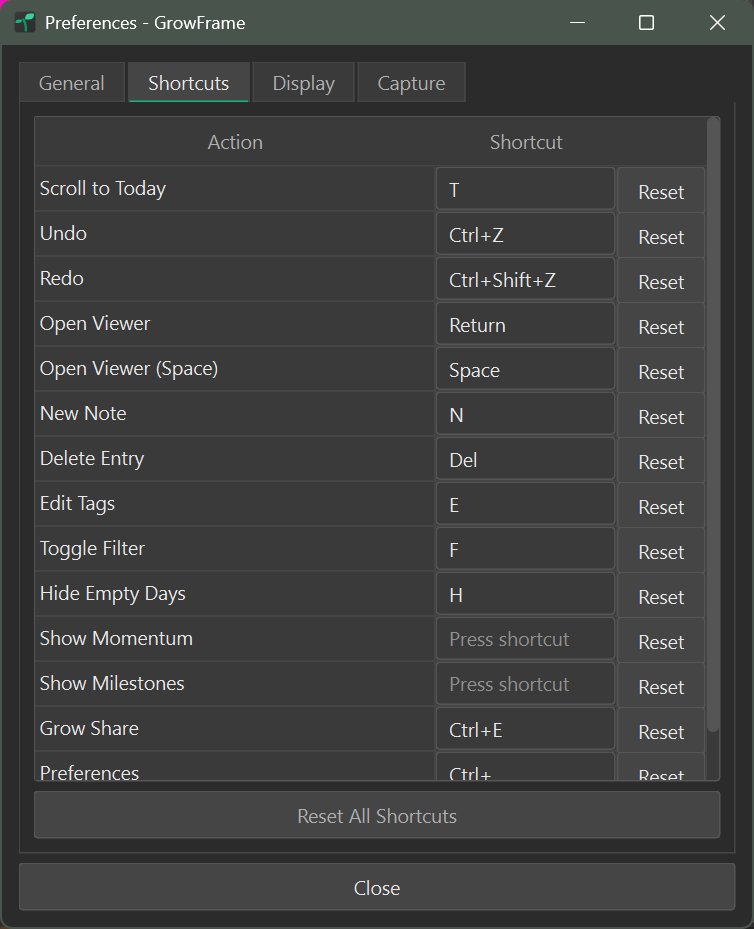
Default keyboard shortcuts
| Key | Action |
|---|---|
| T | Scroll to today |
| N | New note on selected card |
| E | Edit tags on selected card |
| F | Toggle Kanban filter |
| H | Hide empty day columns |
| Return / Space | Open selected entry in the media viewer |
| Delete | Delete selected entry |
| Ctrl + Z | Undo |
| Ctrl + Shift + Z | Redo |
| Ctrl + E | Open Grow Share |
| Ctrl + , | Preferences |
GrowFrame also has system-wide capture hotkeys — bind fullscreen, region-image, and region-video capture each to its own global combo and trigger them from any application. They ship unbound by default; assign each from Settings → Shortcuts → Global Shortcuts (key picker, per-row clear button, and a conflict warning if the combo is already taken).
Licensing & activation
One purchase is a per-seat perpetual licence for v1 — lifetime use, with up to two device activations at a time (your desktop and laptop, say). Activation happens on first launch using the key from your purchase email. GrowFrame only reaches the network when you activate or deactivate — never silently in the background.
Help → About shows your version and licence summary (last 4 of the key, activation date), with buttons to copy the full key for support emails, open the bundled EULA and third-party notices, and Deactivate this device — use that to free an activation slot before moving to another machine.